
Background
Background
SwiftUI te propose une multitude de façons pour créer des arrière-plans dans tes applis iOS. Voici les options les plus courantes.
Le modifieur .background
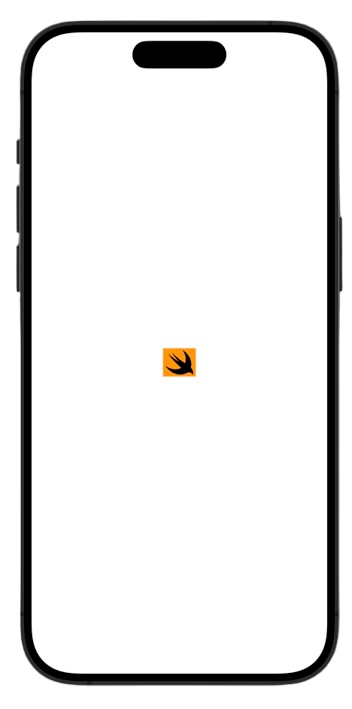
Le modifieur .background permet d’ajouter un arrière-plan à n’importe quelle vue.
 Image(systemName: "swift")
  .font(.largeTitle)
  .background(Color.orange)
Avec un gradient LinearGradient
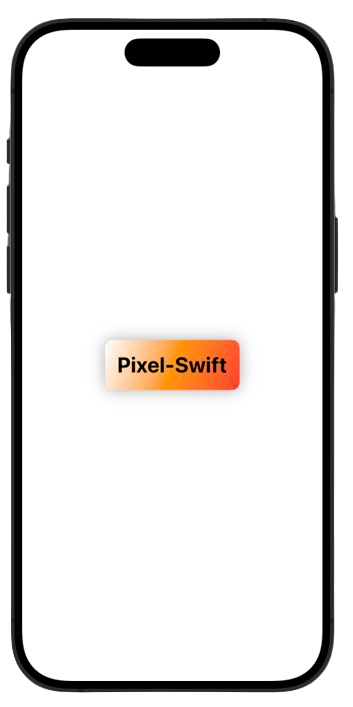
 Text("Pixel-Swift")
    .font(.title)
    .fontWeight(.bold)
    .padding()
    .background(LinearGradient(gradient: Gradient(colors: [.white, .orange, .red]), startPoint: .topLeading, endPoint: .bottomTrailing))
    .cornerRadius(10)
    .shadow(radius: 10)
Avec une image Image
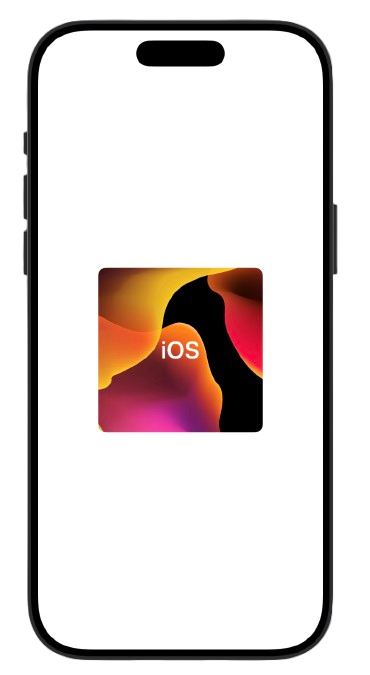
Text("IOS")
	.frame(width: 200, height: 200)
	.font(.largeTitle)
	.fontWeight(.semibold)
	.foregroundStyle(.white)
	.padding()
	.background(Image("ios").resizable().aspectRatio(contentMode: .fill))
	.cornerRadius(10)
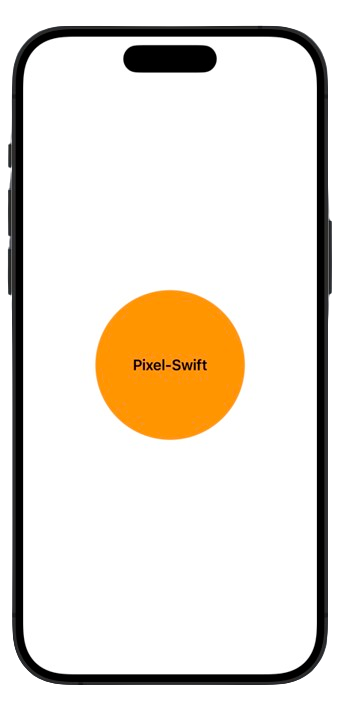
Avec une vue personnalisée
Text("Pixel-Swift")
  .padding()
  .font(.title3)
  .fontWeight(.semibold)
  .background(
      Circle()
          .frame(width: 200, height: 200)
          .foregroundStyle(.orange)
  )
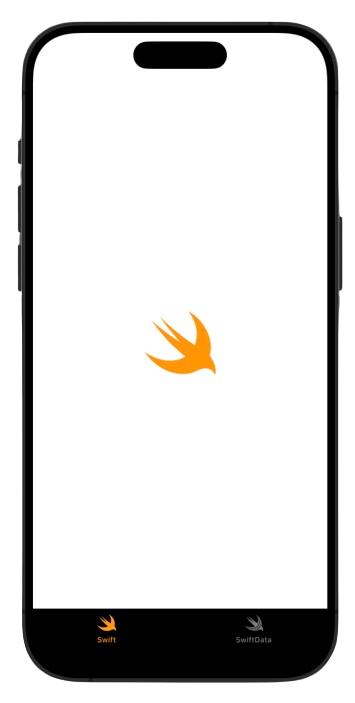
Fond pour TabView .toolbarBackground
struct BackgroundView: View {
    var body: some View {
        TabView {
            SwiftView()
                .toolbarBackground(.black, for: .tabBar)
                .toolbarBackground(.visible, for: .tabBar)
                .tabItem {
                    Text("Swift")
                    Image(systemName: "swift")
                }
            SwiftDataView()
                .toolbarBackground(.black, for: .tabBar)
                .toolbarBackground(.visible, for: .tabBar)
                .tabItem {
                    Label("SwiftData", systemImage: "swiftdata")
                }
        }

        .tint(.orange)
    }
}
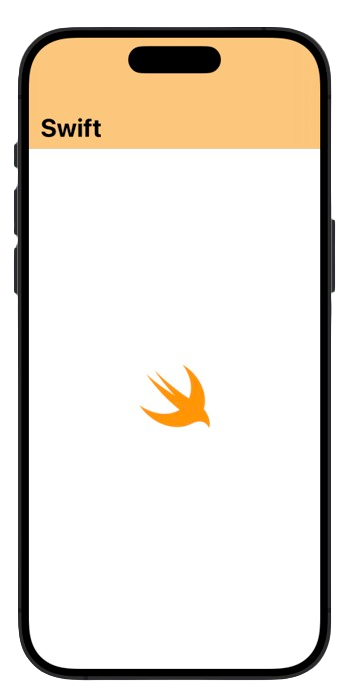
struct BackgroundView: View {
    var body: some View {
        NavigationStack {
            Image(systemName: "swift")
                .font(.system(size: 80))
                .fontWeight(.black)
                .foregroundStyle(.orange)
                .accessibilityLabel(Text("Logo de Swift"))
                .toolbarBackground(.orange.secondary, for: .navigationBar)
                .toolbarBackground(.visible, for: .navigationBar)
                .edgesIgnoringSafeArea(.bottom)

                .navigationTitle(Text("Swift"))
        }
    }
}
Fond d’écran avec ZStack
Tu peux aussi utiliser ZStack pour superposer plusieurs vues et créer un arrière-plan personnalisé. Voici des exemples
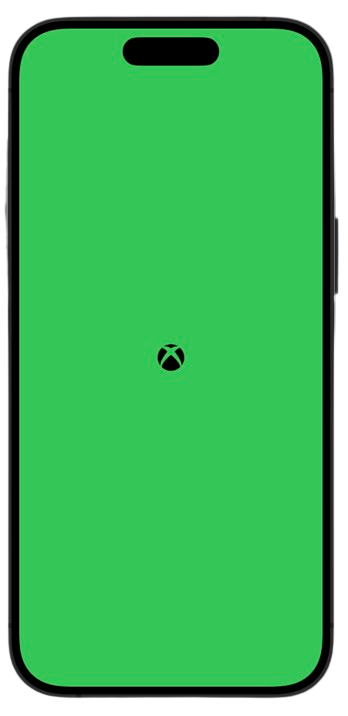
Color
struct BackgroundView: View {
    var body: some View {
        ZStack {
            Color.green
            Image(systemName: "xbox.logo")
                .font(.largeTitle)
        }
        .ignoresSafeArea()
    }
}
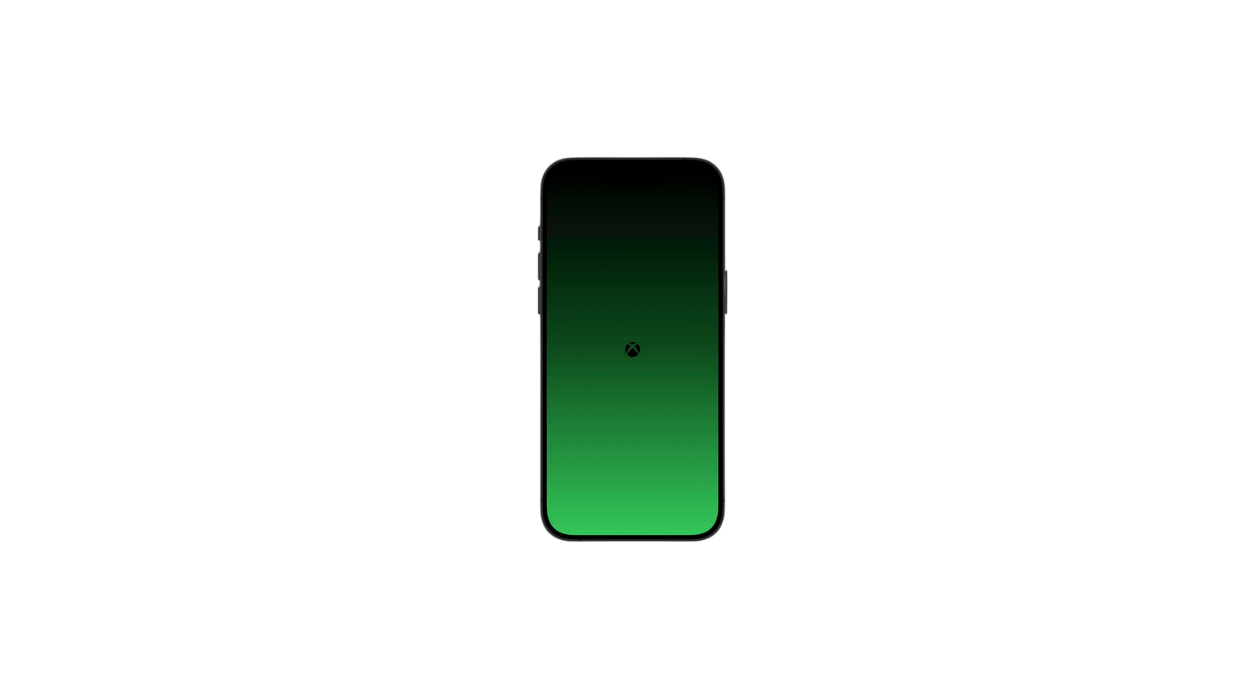
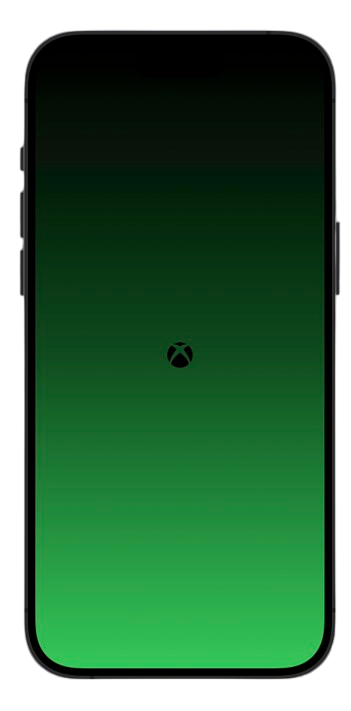
LinearGradient
struct BackgroundView: View {
    var body: some View {
        ZStack {
            LinearGradient(gradient: Gradient(colors: [.black, .green]), startPoint: .top, endPoint: .bottom)
            Image(systemName: "xbox.logo")
                .font(.largeTitle)
        }
        .ignoresSafeArea()
    }
}
Image
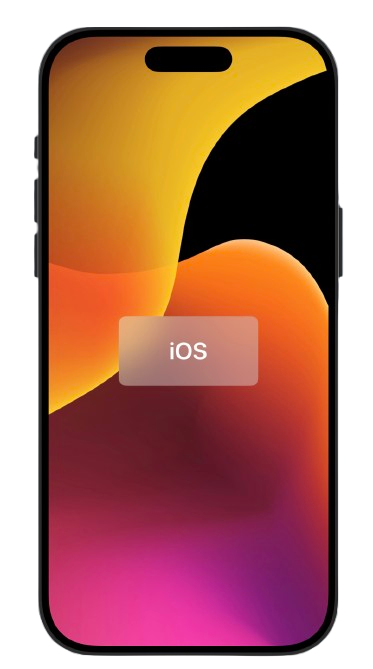
struct BackgroundView: View {
    var body: some View {
        ZStack {
            Image("ios")
                .resizable()
                .aspectRatio(contentMode: .fill)
                .edgesIgnoringSafeArea(.all)
            VStack {
                ZStack {
                    RoundedRectangle(cornerRadius: 10)
                        .frame(width: 200, height: 100)
                        .foregroundStyle(.ultraThinMaterial)
                    Text("IOS")
                        .font(.largeTitle)
                        .fontWeight(.semibold)
                        .foregroundColor(.white)
                }
            }
        }
    }
}
Tips
Dans Xcode, si tu fais un clic droit sur un composant (ou un clic avec deux doigts sur le trackpad), tu accéderas à un menu très utile pour gagner du temps et éviter les erreurs de syntaxe. Ce menu permet notamment d’embed (encapsuler) la vue sélectionnée dans une Stack, par exemple. Tu y trouveras aussi plusieurs autres options pratiques, alors prends le temps d’explorer, ça peut vraiment faciliter ton travail.
Tips
Dans Xcode, si tu fais un clic droit sur un composant (ou un clic avec deux doigts sur le trackpad), tu accéderas à un menu très utile pour gagner du temps et éviter les erreurs de syntaxe. Ce menu permet notamment d’embed (encapsuler) la vue sélectionnée dans une Stack, par exemple. Tu y trouveras aussi plusieurs autres options pratiques, alors prends le temps d’explorer, ça peut vraiment faciliter ton travail.